This is the easiest way to get started but with on major caveat. You won’t be monitoring your network but you will still practice with already collected data that I’m including in the virtual image.
You can download a VM that has everything preinstalled and ready to go. You can download the VM from here.
A video exists to help with the setup that can be seen here. Or if you are confident enough, you can follow the steps below.
Download VirtualBox from here. This is the Virtualization software that will load the image.
Install VirtualBox.
Open VirtualBox and click on Import Appliance.
Select the downloaded VM and click Open.
Click Import. Make sure to select “all network adapters” to be included (not just NAT). All other settings you can leave as default.
Once the import is over, click Start.
The VM will boot and you will see a login screen. The username is netsec and the password is netsec123.
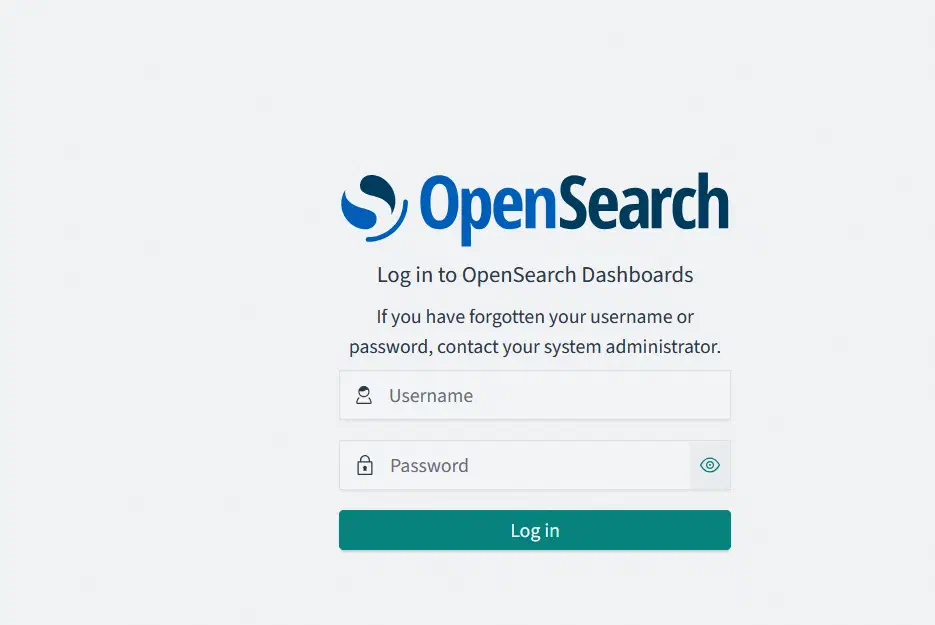
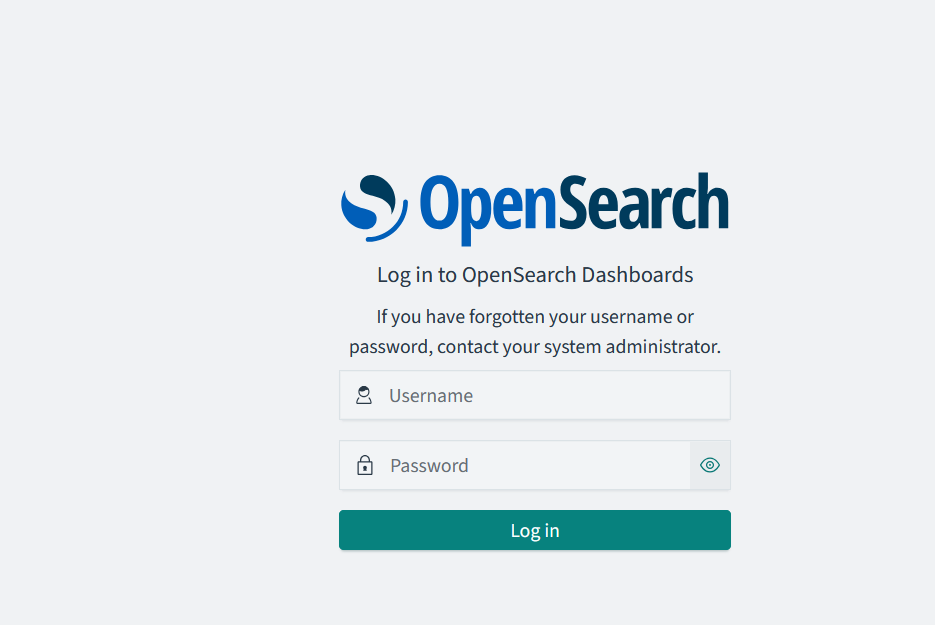
Once logged in, open a browser on your host machine (not the VM) and type localhost:5601. You’ll need to replace localhost with the IP address your VM assumed in your local network. That is shown when you first login and typically it starts with 192.168. It may take a while for the VM to also load so you may want to wait a few minutes if the first time doesn’t work. Check out this video here to see an example of the process. If all goes well, you will see the Opensearch Dashboards interface. Example image:
Dashboards.
The login information for the web interface is admin and the password is Netsec123.
You can follow the subsequent chapters of the book to setup Visualizations or you can import some pre-made ones from the book’s repository here. I DO NOT advise this if your objective is to learn how to make these and eventually become a security analyst.