Chapter 2 walkthrough
Lab option 1: full hardware (advanced)
Build a dedicated IDS sensor with a network tap and port mirroring that monitors every device on your home network.
This is the most comprehensive solution but also the most expensive. Expect to pay around $300 (more if you go for high-end options) for the hardware if you don’t have any spare devices laying around.
IDS Device#
You’ll need a device to run your IDS stack. You can use any computer or even somewhat older laptop but they draw power and they have to be always on. A single board computer like a Raspberry Pi is preferable especially for your home network. Two options are:
Because Raspberry Pi 4 is ARM architecture, Beelink is preferable as it is x86_64 architecture and most software is compiled for it. The guide will continue with Beelink in mind. The good news is that it comes with disk and everything else that you need.
Installing Linux on Beelink#
Beelink comes with Windows installed which is not what we need. Instead you’ll install Linux on it:
- Download Ubuntu Server 24.04 LTS from here
- Create a bootable USB using Rufus or Balena Etcher
- Find a spare USB drive (at least 8GB) and plug it in your computer.
- On Rufus, select the USB drive, select the Ubuntu ISO, and click Start.
- Plug the USB drive in the Beelink and boot from it. You will need to have a keyboard and a monitor plugged into Beelink for this step. You may have to press F7 to enter the boot menu, then select the USB drive (it will likely say Ubuntu).
- Select Keyboard layout, language, and other settings.
- If ethernet is connected, it will ask you to configure it. If not, you can do it later. Hit skip.
- Select drive full erase and install Ubuntu. DO NOT select LVM or encryption as it will complicate setup. If you have done this before, feel free to ignore this advise.
- Give a username and a password. You can use the same password for the root account.
- Enable openssh server (this is important for remote access).
- After the install is over, remove the USB drive and reboot.
- Beelink is now a ready to use server for your IDS stack. You can disconnect any keyboard and monitor from it.
Installing IDS Software#
Next up, we need to install on Beelink the necessary software.
- Plug Beelink’s ethernet into your router. This won’t be its final location, just a temporary for setting up.
- Boot it up and then find its IP address in your network. You can do this by logging into your router and looking at the connected devices. Or since we know that SSH is active, you can do
nmap -p 22 192.168.0.0/24to find devices in your subnet that have port 22 open (i.e., SSH). Remember to replace your subnet with the correct one based on your network. - Get to your Laptop or Desktop. If you are using Windows, download Putty and install it. If you are using Mac or Linux, you can use the Terminal.
- Open Putty and enter the IP address of Beelink. Click Open. For Mac or Linux, type
ssh username@ipaddresswhere username is the username you chose during the Ubuntu install and ipaddress is the IP address of Beelink. - Enter the password when prompted.
- Now you should see a terminal and be able to type commands.
- Install docker using the following guide (the three steps, you can copy-paste them): Docker Install Guide.
- Once docker is installed, you will take the book’s shortcut that comes with all prepackaged IDS software needed. This saves you time. You need to install git to download the repository containing the necessary setup. Type
sudo apt install gitto install git. - Then, clone the repository using
git clone https://github.com/tsikerdekis/overnight-hercules-network-security-opensearch-image.git ohns-opensearch. - Change directory to the repository using
cd ohns-opensearch. - Before starting, you’ll need to know the Ethernet interface of Beelink you wish to monitor. This is usually eth0 but just in case type
ifconfigand look for the interface that has an IP address, within your subnet. For example:
enp2s0: flags=4419<UP,BROADCAST,RUNNING,PROMISC,MULTICAST>  mtu 1500
        inet 192.168.0.17  netmask 255.255.255.0  broadcast 192.168.0.255
        inet6 2601:602:87f:58f0:2c0:8ff:fe93:ed95  prefixlen 64  scopeid 0x0<global>
        inet6 2601:602:87f:58f0::5313  prefixlen 128  scopeid 0x0<global>
        inet6 fe80::2c0:8ff:fe93:ed95  prefixlen 64  scopeid 0x20<link>
        ether 00:c0:08:93:ed:95  txqueuelen 1000  (Ethernet)
        RX packets 182561322  bytes 216644080011 (216.6 GB)
        RX errors 0  dropped 146118  overruns 0  frame 0
        TX packets 17748231  bytes 2918875770 (2.9 GB)
        TX errors 0  dropped 0 overruns 0  carrier 0  collisions 0
Make a note of the code (e.g., enp2s0) that is associated with network interface.
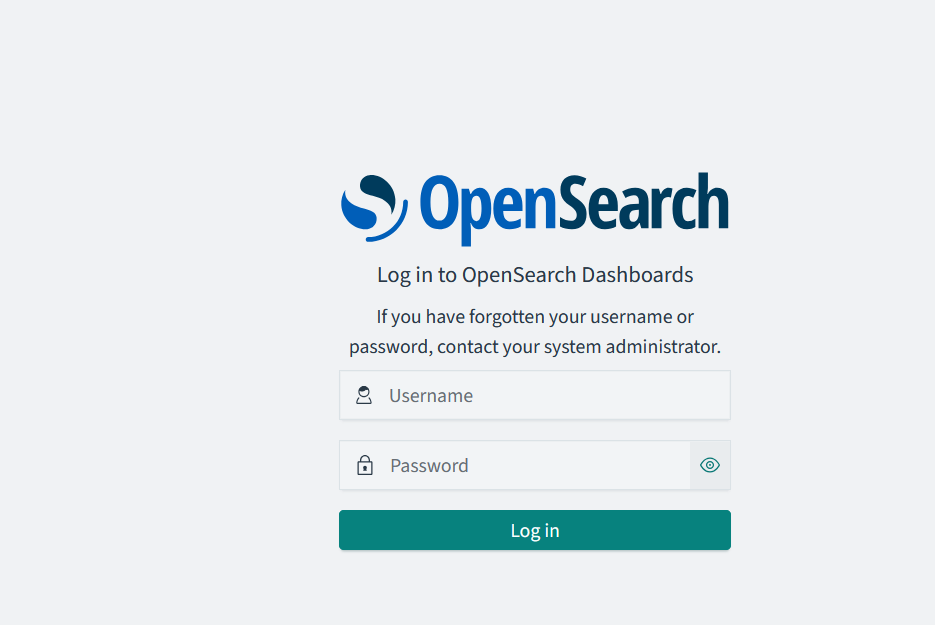
12. To load the IDS software, type bash start.sh. This will prompt you with a few questions about your network, provide the answers based on what you know. It will also take a while for everything to be download and started. Be patient. When everything returns to prompt, you are ready to go. Example image:

- At this point you can also go to your router and assign a fixed IP for beelink. This way, you can always access it using the same IP. During your first login, select Global Tenant when Opensearch asks. As for data, type, explore my own.
Network Tap#
You can either use a passive or active tap. Passive taps are easier to use but active taps are more versatile. One active tap that you can use is a switch like TP-Link TL-SG105E. This switch has a feature called port mirroring that allows you to mirror all traffic from one port to another.
- Connect the switch to your router.
- Connect Beelink to the switch.
- Find the IP address of the switch’s web management interface. It is usually acquired from DHCP but you if you are unsure, either look at the switche’s manual or use a network scanner like nmap (e.g.,
nmap -p 80 192.168.0.0/24) and try any IPs that look positive. - Open a browser and type the IP address of the switch. You will be prompted to enter a username and password. The default credentials are usually found on the switch itself or in the manual. Common defaults are
adminfor both username and password, oradminfor username andadminfor password. You may have to google search for your switch’s default credentials (e.g., “TP-Link TL-SG105E default login”). - Find the port mirroring setting and mirror the port that Beelink is connected to. This way, Beelink will see all traffic that goes through the switch. Setup for ingress-egress data duplication the port that leads to your ISP router (edge router). Example image:
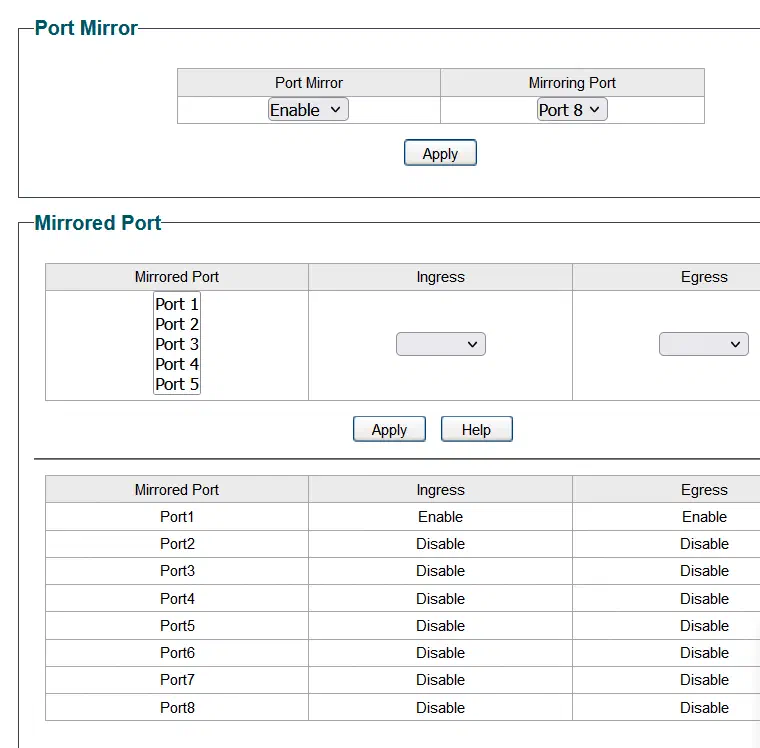
Port Mirroring - Now data should be flowing to Beelink and you can start monitoring your network.
WiFi Router#
If you have a WiFi router, you can connect it to the switch and use it as an access point. This way, all WiFi traffic will also be monitored. DO NOT use your ISP’s router as a WiFi router as traffic won’t flow through the switch, especially for internet communications. Instead, buy a separate one. Example: TP-Link Archer AX1800.
- Get your laptop or desktop and connect to the WiFi router using an ethernet cable. DO NOT connect to the Wifi or have anything else networked connected to it.
- Use the guide to find the default IP address of the WiFi router and access it through your browser.
- Set the WiFi router to Access Point mode. This will disable the router functionality and make it act as a switch. This way, all traffic will flow through the switch and to Beelink.
- For DHCP, you can either disable it on the WiFi router or more advanced users can split the subnet. For example, on the ISP’s router can set the range from 192.168.0.30 to 192.168.0.100 and the WiFi router from 192.168.0.101 to 192.168.0.254. Notice that I left an IP range from .1 to .30 outside DHCP. This is for setting up static devices so that the DHCP won’t assign these IPs somewhere else. DO NOT use two DHCPs with the same range and DO NOT use separate subnets (e.g., 192.168.0.0/24 and 192.168.1.0/24) as this will complicate the setup.
- Assign a static IP to your WiFi router. This way, you can always access it using the same IP. It should be an IP that is used.
- Connect the WiFi router to the switch and you are ready to go.
Wired devices#
If you have wired devices, you can connect them to the switch or the WiFi router. If you connect them on the ISP’s router then their traffic will likely won’t be monitored.
Topology Example#
Here is an example of the topology you should have after following the above steps:
    +-------------------+
    |    Edge Router    |
    +-------------------+
                |
                |
                |
    +-------------------+
    |      Switch       |
    +-------------------+
        |               |
        |               |
        |               |
 +-------------------+  |
 |   WiFi Router     |  |
 +-------------------+  |
                        |
                        |
        +-------------------+
        |        IDS        |
        +-------------------+
Final step#
You’ll need to setup an index pattern in OpenSearch Dashboards to see the data. The guide is here.
You can follow the subsequent chapters of the book to setup Visualizations or you can import some pre-made ones from the book’s repository here. I DO NOT advise this if your objective is to learn how to make these and eventually become a security analyst.