Labor IX · Chapter 9
Recognizing Threats from Within
Not every threat comes from outside. Watch east-west traffic between internal hosts and flag the lateral movement that signature-based tools miss.
An insider, or an attacker who has already taken over one of your devices, leaves a different trail than an outside attacker. They scan, probe, and move sideways, and all of it happens between devices on your own network. That is why every visualization in this chapter keeps only internal traffic (both the source and the destination are local addresses).
The tables below group traffic by the src_dest_ip scripted field. If you haven’t created it yet, follow the steps in Chapter 6 first.
Byte transfers between internal IP pairs#
- Go to the Opensearch Dashboards web interface.
- Click on the “Visualize” tab in the left top area.
- Click on “Create visualization”.
- Select “Data table” as the visualization type.
- Select the index pattern (logstash*) and click “Next step”.
- Select “Split rows” and then “Aggregation” as “Terms”.
- Select “src_dest_ip” as the field and click “Apply changes”.
- In “Metric,” select “Sum” and
flow.total_bytesas the field. - Then, in the filter restrict to only local data using the following query:
(src_ip:(
  "10.0.0.0/8" or
  "172.16.0.0/12" or
  "192.168.0.0/16" or
  "fc00::/7" or
  "fe80::/10"
) and
dest_ip:(
  "10.0.0.0/8" or
  "172.16.0.0/12" or
  "192.168.0.0/16" or
  "fc00::/7" or
  "fe80::/10"
))
- Save the visualization with a name such as “Byte transfers between internal IP pairs”.
What to look for: pairs that move far more data than the rest, or devices that have no business talking to each other. An attacker exfiltrating data from inside your network often does it slowly, so compare against what is normal for you.
IP connections between source and destination IP pairs#
- Go to the Opensearch Dashboards web interface.
- Click on the “Visualize” tab in the left top area.
- Click on “Create visualization”.
- Select “Data table” as the visualization type.
- Select the index pattern (logstash*) and click “Next step”.
- Select “Split rows” and then “Aggregation” as “Terms”.
- Select “src_dest_ip” as the field and click “Apply changes”.
- Restrict data to only flows
event_type:flow. You also need to restrict port 53 (DNS) traffic to avoid noise otherwise, it will clutter the table. UseNOT dest_port:53in the filter. - Restrict traffic to only local IPs using:
(src_ip:(
  "10.0.0.0/8" or
  "172.16.0.0/12" or
  "192.168.0.0/16" or
  "fc00::/7" or
  "fe80::/10"
) and
dest_ip:(
  "10.0.0.0/8" or
  "172.16.0.0/12" or
  "192.168.0.0/16" or
  "fc00::/7" or
  "fe80::/10"
))
- Save the visualization with a name such as “IP connections between source and destination IP pairs”.
What to look for: the same pair connecting over and over. Counting connections rather than packets reveals an attacker repeatedly trying a service or credentials (“fumbling”). It can also reveal a misconfigured system that keeps reconnecting, so investigate before concluding anything.
No response visualization for internal IP pairs#
- Go to the Opensearch Dashboards web interface.
- Click on the “Visualize” tab in the left top area.
- Click on “Create visualization”.
- Select “Data table” as the visualization type.
- Select the index pattern (logstash*) and click “Next step”.
- Select “Split rows” and then “Aggregation” as “Terms”.
- Select “src_dest_ip” as the field and click “Apply changes”.
- Use the following filters:
event_type:flowflow.pkts_toclient:0
- Restrict traffic to only local IPs using:
(src_ip:(
  "10.0.0.0/8" or
  "172.16.0.0/12" or
  "192.168.0.0/16" or
  "fc00::/7" or
  "fe80::/10"
) and
dest_ip:(
  "10.0.0.0/8" or
  "172.16.0.0/12" or
  "192.168.0.0/16" or
  "fc00::/7" or
  "fe80::/10"
)) and not (
  src_ip: "255.255.255.255" or
  src_ip: "224.0.0.0/4" or
  src_ip: "ff00::/8" or
  dest_ip: "255.255.255.255" or
  dest_ip: "224.0.0.0/4" or
  dest_ip: "ff00::/8"
)
- Save the visualization with a name such as “No response visualization for internal IP pairs”.
What to look for: traffic that never gets an answer is what a network scan looks like, especially when it is aimed at IP addresses that do not exist (the “darknet”, the unused space in your subnet). Nothing legitimate should be trying to reach them.
Unique ports between internal IP pairs#
A device checking which services another device offers (a vertical scan) touches many different ports on the same destination. Counting the unique destination ports for each pair makes that stand out.
- Go to the Opensearch Dashboards web interface.
- Click on the “Visualize” tab in the left top area.
- Click on “Create visualization”.
- Select “Data table” as the visualization type.
- Select the index pattern (logstash*) and click “Next step”.
- In “Metric,” select “Unique Count” and
dest_portas the field. - Select “Split rows” and then “Aggregation” as “Terms”.
- Select “src_dest_ip” as the field. Set “Order by” to the metric you just created, in descending order, and set the “Size” to 100. Click “Apply changes”.
- Restrict the data to flows between local addresses. Use the same query as in the previous visualizations, and add
event_type:flow:
event_type:flow and (src_ip:(
  "10.0.0.0/8" or
  "172.16.0.0/12" or
  "192.168.0.0/16" or
  "fc00::/7" or
  "fe80::/10"
) and
dest_ip:(
  "10.0.0.0/8" or
  "172.16.0.0/12" or
  "192.168.0.0/16" or
  "fc00::/7" or
  "fe80::/10"
))
- Save the visualization with a name such as “Unique ports between internal IP pairs”.
What to look for: pairs with a very high number of unique ports compared to the rest. Most devices talk to a service on one or two ports, so a pair with dozens or hundreds stands out. Attackers may spread the scan over days to hide it, so widen the time range.
Unique destinations per internal source IP#
A device looking for other devices to attack (a horizontal scan) reaches out to many different IP addresses on the subnet. Counting the unique destinations for each source IP shows it, regardless of whether the packets are ICMP, TCP, or UDP.
- Go to the Opensearch Dashboards web interface.
- Click on the “Visualize” tab in the left top area.
- Click on “Create visualization”.
- Select “Data table” as the visualization type.
- Select the index pattern (logstash*) and click “Next step”.
- In “Metric,” select “Unique Count” and
dest_ip.keywordas the field. - Select “Split rows” and then “Aggregation” as “Terms”.
- Select
src_ip.keywordas the field. Set “Order by” to the metric you just created, in descending order, and set the “Size” to 100. Click “Apply changes”. - Restrict the data to local traffic using the same query as in the previous visualization.
- Save the visualization with a name such as “Unique destinations per internal source IP”.
What to look for: a source IP that contacts many more destinations than your other devices. Your router and a handful of servers will naturally be near the top. Anything else that is high deserves a closer look, especially if the same device also appears in the “No response” table.
Putting it all together#
- Go to the Opensearch Dashboards web interface.
- Click on the “Dashboard” tab in the left top area.
- Click on “Create dashboard”.
- Click on “Add” in the top area.
- Select the visualizations you created in the previous steps.
- Click on “Save” and give the dashboard a name such as “Internal IP traffic analysis”.
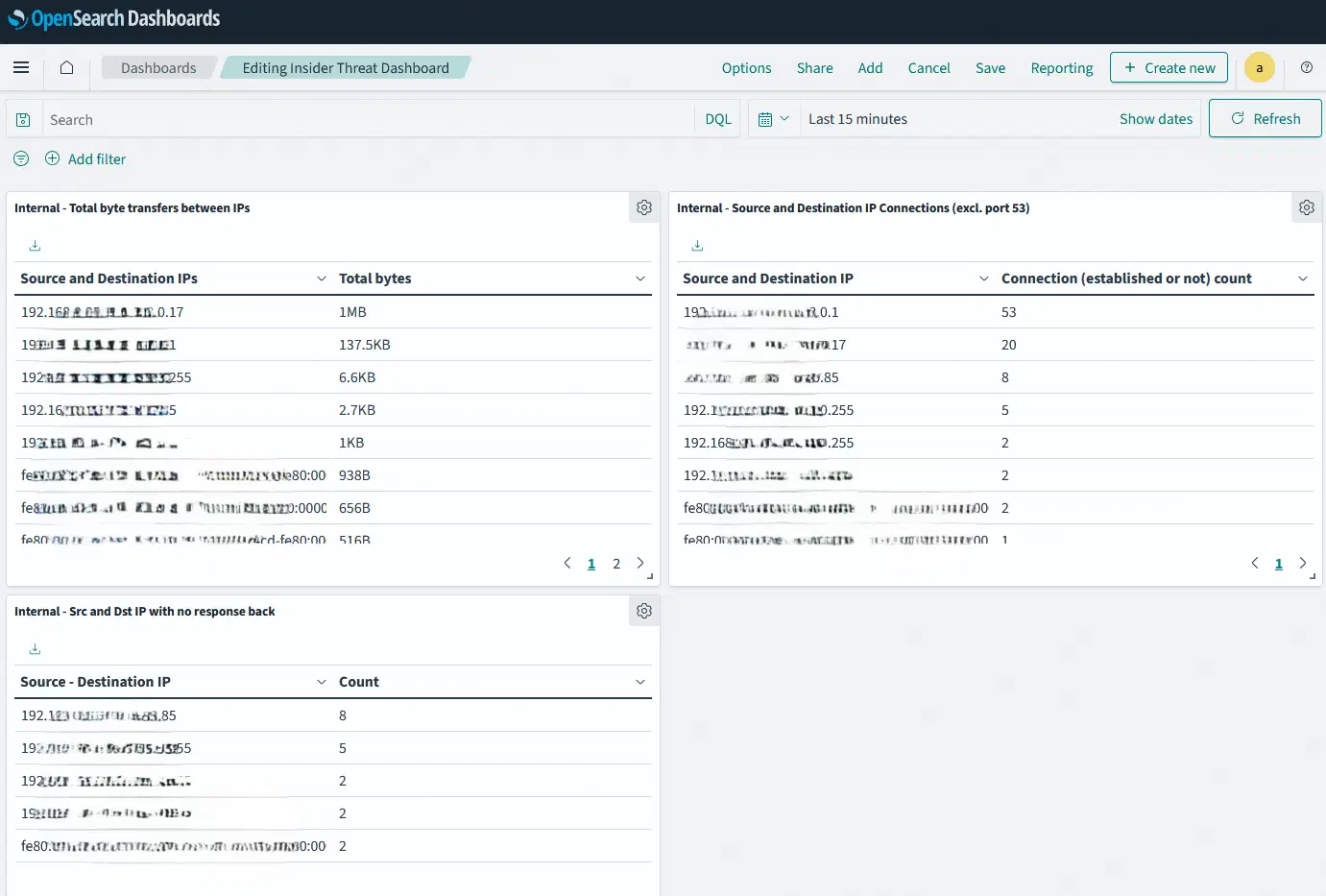
Here’s how it looks. The screenshot shows the first three panels; the two scan-detection tables sit alongside them.